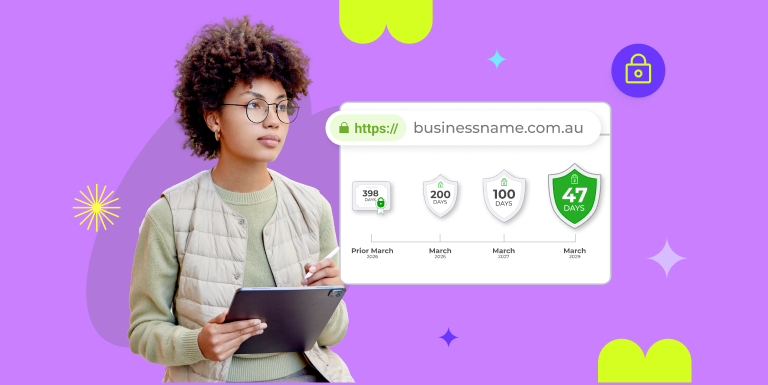
| WordPress admin security refers to the set of measures and best practices used to protect the wp-admin dashboard and login endpoints from unauthorised access, data breaches, malware, and other cyber threats. This includes enforcing SSL/TLS encryption to secure data in transit, implementing IP filtering to limit dashboard access, and layering additional defences, such as firewalls, two-factor authentication, and login restrictions. |
The wp-admin dashboard is the nerve centre of your website, making WordPress admin security critical. If attackers reach it, they can steal data, plant malware, or lock you out entirely.
Additionally, a compromised wp-admin can damage your site’s SEO, erode customer trust, and lead to costly downtime and legal liabilities.
This guide gives small and medium-sized businesses, tech-savvy professionals, and digital agencies a three-step plan: force SSL, restrict IPs, and add layered protection to reduce that attack surface in under 30 minutes.
Why Securing WP-Admin Should Top Your To-Do List
Even a hardened front end is useless if the back door is ajar. Brute-force log-ins, credential stuffing, and session hijacking all target /wp-login.php and /wp-admin/, making robust WordPress admin security essential.
If they succeed, expect downtime, legal headaches, and a bruised reputation. Google actively flags insecure login pages through its Safe Browsing program and rewards HTTPS sites with clearer trust signals.
Pre-Flight Checklist
Before touching configuration files, confirm the basics:
- Verify you have a hosting control panel or SSH access and WordPress administrator rights.
- Create a full file and database backup—either via a plugin or a host-level snapshot.
- Note the public IP addresses of everyone who needs dashboard access.
- Confirm you can edit wp-config.php plus server config files such as .htaccess or nginx.conf.
A quick preparatory sweep avoids lockouts and gives you an easy rollback point if something breaks.
How to Secure Your WP Admin Panel with SSL & IP Filtering
Below are the essential steps to protect your WordPress admin area, prevent unauthorised access, and reduce the risk of data breaches:
Step 1: Force SSL on WordPress Admin
SSL (now called TLS) encrypts data in transit, preserving confidentiality and integrity while signalling trust to visitors through the browser padlock.
A valid SSL certificate for WordPress also stops credential sniffing on public Wi-Fi and eliminates “Not secure” warnings that erode customer confidence.
Choosing the Right SSL Certificate for WordPress
- Domain-Validated (DV) certificates verify domain control and are ideal for SMEs who need speed and affordability.
- Organisation-Validated (OV) adds basic company vetting—useful when clients expect higher assurance.
- Extended-Validation (EV) triggers the green company name in some browsers, most useful for e-commerce or finance. You can also decide between single-site, wildcard (covers all subdomains), or multi-domain SAN certificates based on your architecture.
Installing & Configuring Your SSL Certificate
- Generate a CSR & Download the Certificate: Use your control-panel wizard or run openssl req -new -newkey rsa:2048 -nodes -keyout domain.key -out domain.csr.
- Install on the Web Server: Upload the certificate files via cPanel, or add them to your Apache/Nginx/IIS virtual host.
| Also Read: The Non-Tech Savvy Guide to Setting Up a WordPress Website |
Step 2: Implement IP Filtering for wp-admin
With SSL enforced, the next goal is to limit who can even reach the login screen.
Whitelisting vs. Blacklisting: Which Works for SMEs
Blocking known-bad IP ranges is a losing battle. A default-deny, whitelist-only approach allows only your office, home, or VPN IPs to access wp-admin, dramatically reducing opportunistic attacks.
Cloud & Plugin Options
If you lack server-level access, apply rules in your CDN or a WordPress firewall plugin. Many WAF plugins let you create allowlists without editing config files.
Handling Dynamic IPs & Remote Teams
- Connect through a business VPN that provides a static egress IP.
- Alternatively, set up an SSH tunnel or add HTTP basic authentication (.htpasswd) as a secondary gate.
Testing & Troubleshooting
Open an incognito window from a non-whitelisted network; you should see a 403 error. Check server logs (access.log, error.log) to confirm blocked IPs. If you lock yourself out, comment out the deny rules over SSH and re-enable after fixing IP entries.
Step 3: Layer Additional Defenses
Even with SSL and IP filtering, assume something could slip through. Multiple overlapping safeguards buy you time and detection.
Enable a WordPress Firewall
A web application firewall intercepts common exploits such as SQL injection or cross-site scripting before they reach WordPress. Host-level WAFs offer broader coverage, while plugin-based ones give granular control inside the CMS. Select whichever best aligns with your maintenance workflow.
Enforce Two-Factor Authentication
Require TOTP apps or hardware keys for all administrator and editor roles. This single step derails credential-stuffing attacks that succeed when users recycle passwords.
Limit Login Attempts & Disable XML-RPC
Add to wp-config.php:
define( ‘WP_MAX_LOGIN_ATTEMPTS’, 5 );
Then block xmlrpc.php in .htaccess unless you explicitly need Jetpack or remote publishing:
<Files xmlrpc.php> Order allow,deny Deny from all </Files>
Ongoing Maintenance & Monitoring
A secure setup today can drift tomorrow. Make upkeep a routine.
Log Review & Alerts
Pair WP fail2ban with your Linux syslog or an OSSEC agent, then email an alert after five failed logins. Early warnings prevent brute-force floods from going unnoticed.
SSL Renewal & HSTS Preload
Automate renewals via an ACME client cron job. Aim to renew at 60 days before expiry to allow for retries. Submit your domain to the Chrome HSTS preload list once you’re confident HTTPS is permanent.
Keep Core, Themes, Plugins Updated
Apply updates on a staging site first, run regression tests, then push to production. This avoids breaking changes while keeping you patched against newly disclosed vulnerabilities.
| Also Read: Best WordPress Membership Plugins for Creating Exclusive Content |
To Conclude: The ROI of Bulletproof WordPress Admin Security
By forcing SSL, filtering IPs, and adding layered controls, you strengthen WordPress admin security, reducing wp-admin’s attack surface by more than 90 percent and drastically lowering the odds of a breach. Schedule quarterly security audits to ensure configurations and certificates remain current.
At Crazy Domains, we make securing your WordPress site simple. Our managed SSL services, expert support, and best-practice guides help you enforce HTTPS, implement IP filtering, and layer additional defences—all without the hassle of complex configurations.
Sign up today!